How to add product bundles to transactions in the Zuper mobile app
Product Bundles in the Zuper Mobile App allow you to streamline transactions by grouping multiple parts, products, or services into a single bundle. When creating a Quote, Invoice, Proposal, or Job in the Zuper mobile app, you can add product bundles to streamline your workflow, ensuring accuracy in pricing and itemizing details as needed.
This article provides a step-by-step guide to adding product bundles to your transactions within the Zuper Mobile App.
Adding a Product Bundle to a Transaction
To add a product bundle to a transaction in the Zuper Mobile App, follow these steps when working on a Quote, Invoice, Proposal, or Job:
1. Locate and tap "Add" under "Line Item/Product" section. This will allow you to add items to the transaction.
Fig 1.1: Job Fig 1.2: Quote
2. Select the "Add bundle" option.
3. This will open the Product Bundle selector, displaying a list of available bundles.
4. Select the desired product bundle by clicking "Add +".
 Note: You can add only one bundle at a time.
5. The bundle detail page opens and displays key information about the bundle.
6. Enter Bundle Details:
- Quantity: Specify the quantity of the bundle you wish to add to the transaction.
- Description: The bundle’s description will auto-populate. You may modify it if needed.
7. Enter Pricing Details:
- Unit purchase price/ Cost: This field displays the total cost of the entire bundle.
- Markup: Specify a markup amount, if applicable. This field will not appear if you are configuring a Roll-Up Item bundle.
- Unit Selling price: This is the total price at which the bundle will be sold to the customer.
Note: For a Rollup Item bundle, the system automatically calculates the Unit Selling price based on the combined cost of individual items within the bundle.
Fig 2.1: Bundle level price Fig 2.2: Rollup level price
8. You‘ll see each item within the bundle listed with options for editing.
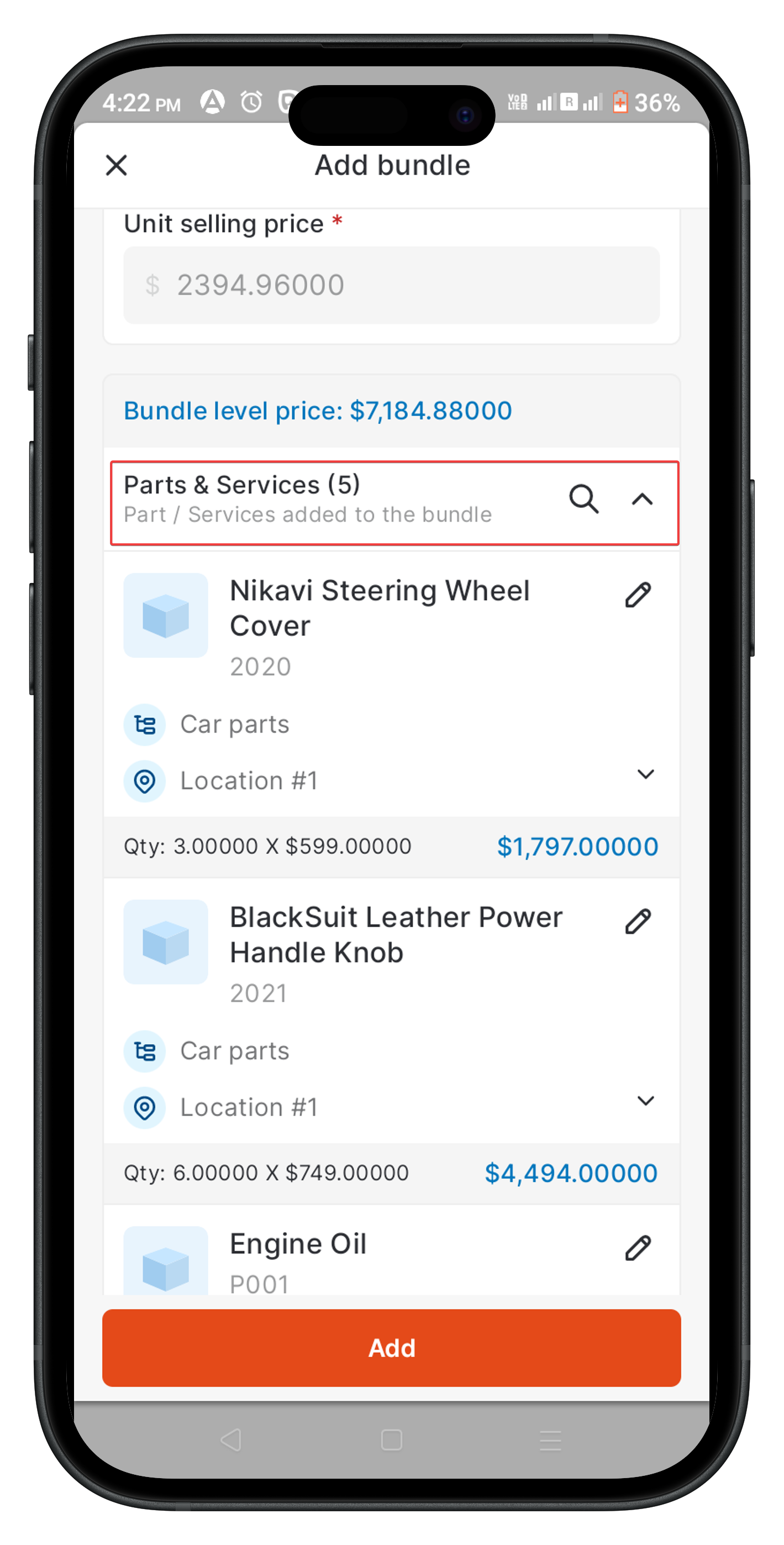
9. Click the "Edit" icon on any item within the bundle to update its details.
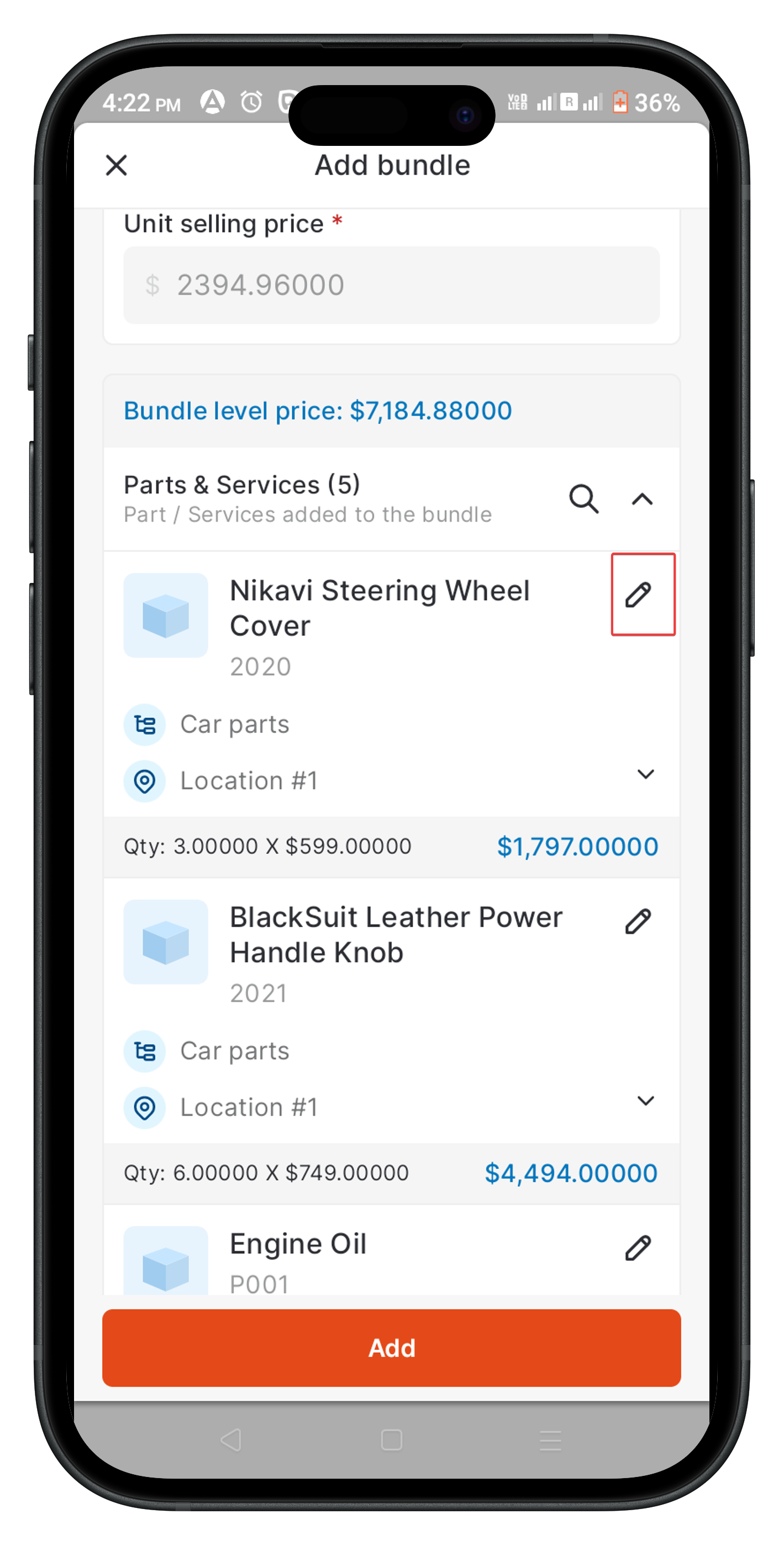
10. Editing Item Details within the Bundle:
- Product Location: The default location is populated but can be updated for each item.
- Description: The default description will be automatically populated, but you can update it as needed.
- Markup and Markup Type: Specify a markup amount (if applicable) as a flat or percentage increase.
- Unit Selling Price and Unit Purchase Cost: These fields show the cost and selling price per unit.
- Discount and Discount Type: Apply any discount on the item. Choose between fixed or percentage discount types.
Note: For the Bundle level price, you cannot modify the sub-item details, but you can apply a markup at the bundle price level.
11. After editing, tap "Update" to save changes for each line item within the bundle.
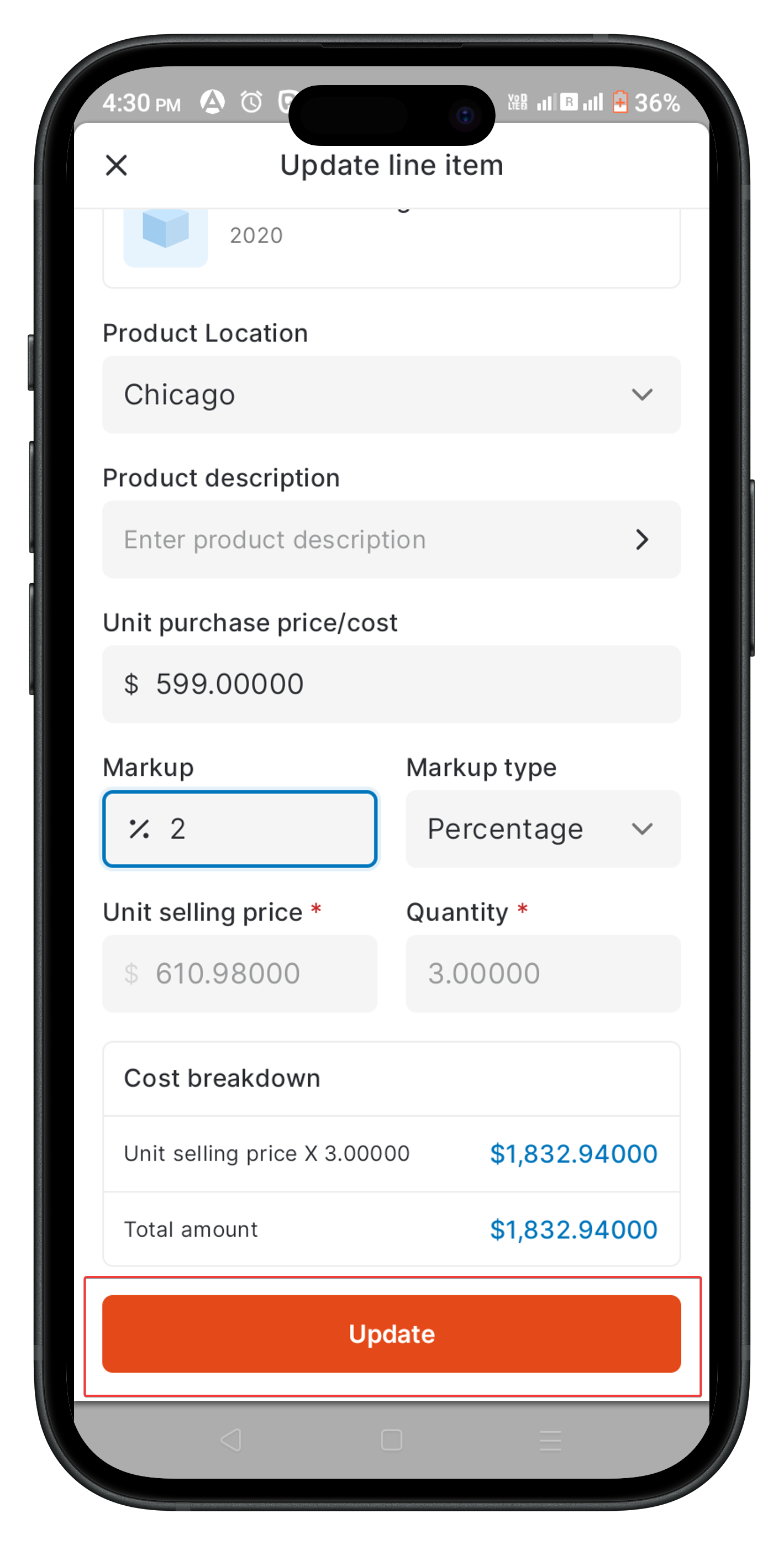
12. Then, tap "Add" to include it in your transaction.
FAQs
- Can I add line items like items, groups, custom items, and bundles in the Contract and Project transactions in the Zuper Mobile App?
No, you can only view Parts & Services line items in Contracts and Projects within the Zuper Mobile App. - How are product bundles differentiated on the Parts & Services listing page?
In the Parts & Services listing page, product bundles are marked with a “Bundle Item” caption on their card, allowing for easy identification. - How can I differentiate between bundle-level and roll-up item bundles?
On the Bundle details page, the type of bundle (bundle-level or rollup) is specified, making it easy to identify the type of bundle used. - Why don’t I see the Unit Purchase Price / Cost and Unit Selling Price fields when adding a Rollup Item bundle to a Quote?
In the Quote transaction, the Unit Purchase Price / Cost and Unit Selling Price fields are not displayed for Rollup Item bundles. Instead, the interface prioritizes the Discount fields, allowing you to apply discounts directly to the bundle.