Tap to Pay on iPhone with Zuper

Tap to Pay on iPhone with Zuper

Zuper Pay now offers the Tap to Pay on iPhone option, providing field service businesses with a seamless, secure, and hardware-free payment solution. This feature enables technicians to accept contactless payments directly on their iPhones—eliminating the need for additional payment terminals.
 Customers can quickly and securely complete transactions by tapping their NFC-enabled credit or debit cards or using digital wallets like Apple Pay, Google Pay, and Samsung Pay—even from an Apple Watch. By adopting this mobile POS solution, Zuper helps businesses streamline payments, reduce hardware costs, and enhance the customer experience.
A hand holding a credit card and a phone

Description automatically generated

Before You Begin·    

  1. You will need an iPhone XS or newer running iOS 16.4 or later to use Tap to Pay on your iPhone.
  2. Download and install the latest version of the Zuper Field Service mobile app from the Apple Store. 

Set Up Tap to Pay on iPhone

You can enable Tap to Pay on iPhone anytime through the Zuper Field Service mobile app: 

1. Log in to your Zuper Field Service mobile app. 
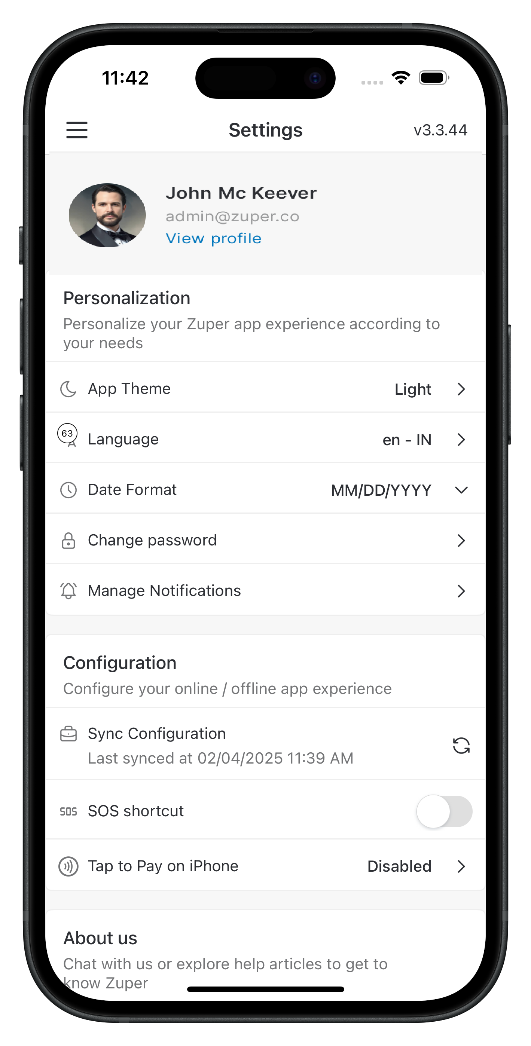
2. Tap the hamburger icon (☰) at the top left and choose Settings
A black cell phone with white text

Description automatically generated
 
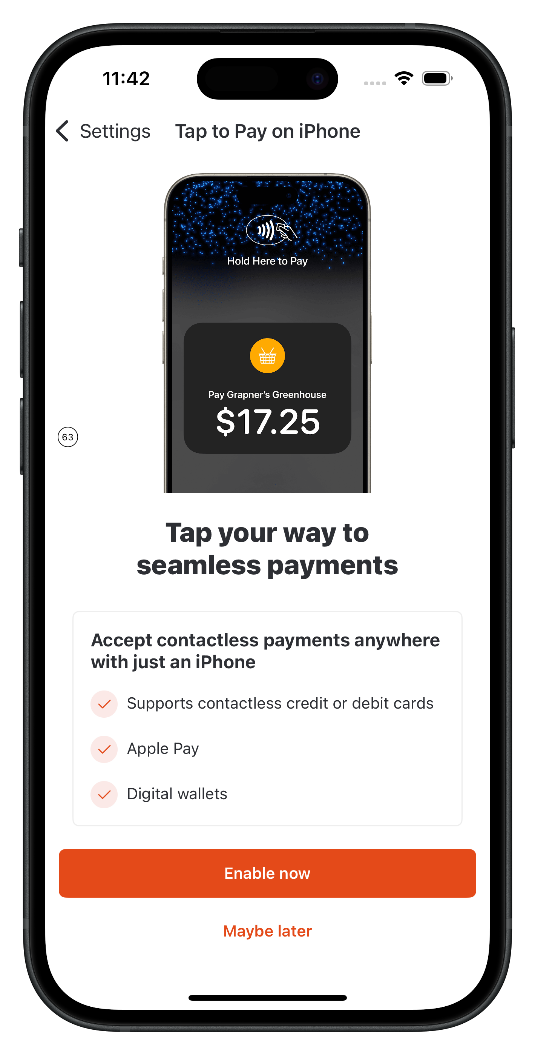
3. Select Tap to Pay on iPhone and tap Enable Now on the next screen. 
A black cell phone with white text

Description automatically generated   A screen shot of a phone

Description automatically generated 
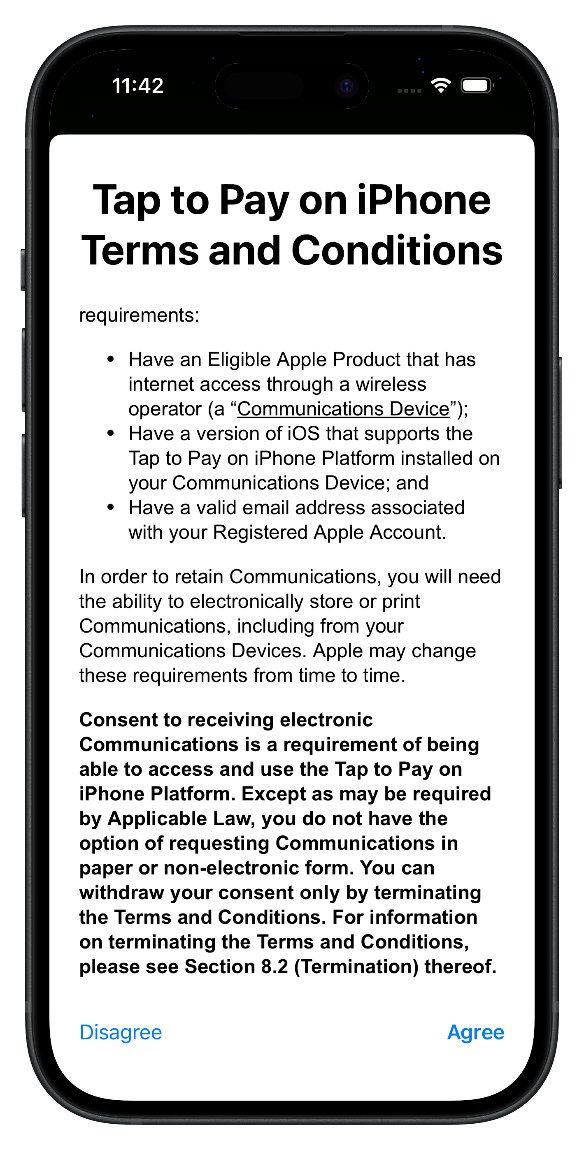
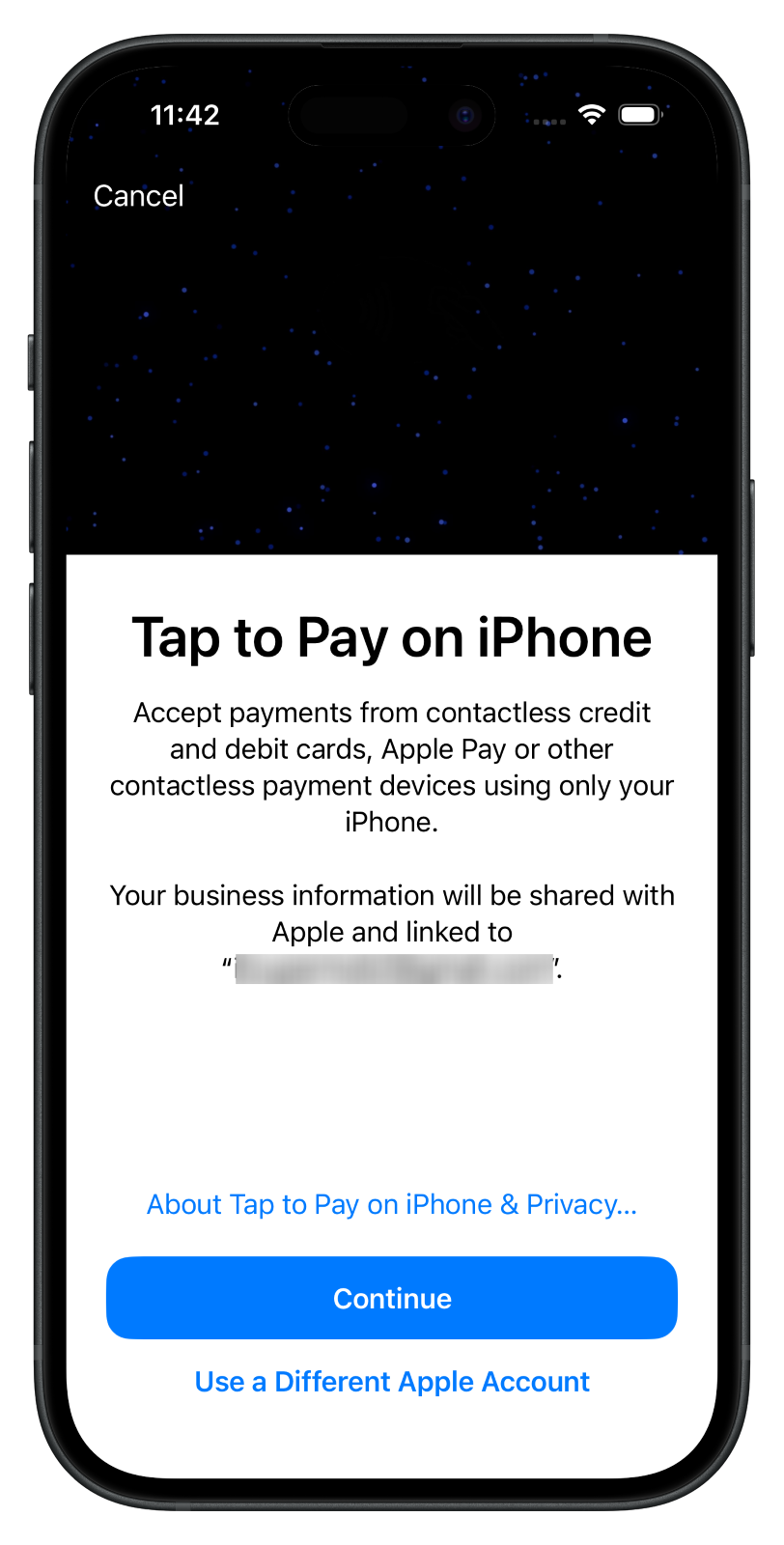
4. The Apple onboarding screens will appear. Review and accept Apple’s Terms of Service
A screen shot of a phone

Description automatically generated 
5. You can continue with the Apple ID associated with your phone or enter a different Apple ID. Note that The Apple ID should belong to you or your business.
A screen shot of a phone

Description automatically generated 
6. When the setup is complete, the Account Linked confirmation screen will appear.  
 
 
Now, you’re ready to start accepting contactless payments! 

Notes
Note: The activation process only needs to be completed once per organization. After activation, Tap to Pay on iPhone will be available on all compatible devices used by your team members. 

Accept Payments with Tap to Pay on iPhone

After enabling Tap to Pay on iPhone, you can accept payments for invoices or deposit quotes within the Zuper mobile app:

1. Navigate to Invoices or Quotes and select the relevant transaction. 
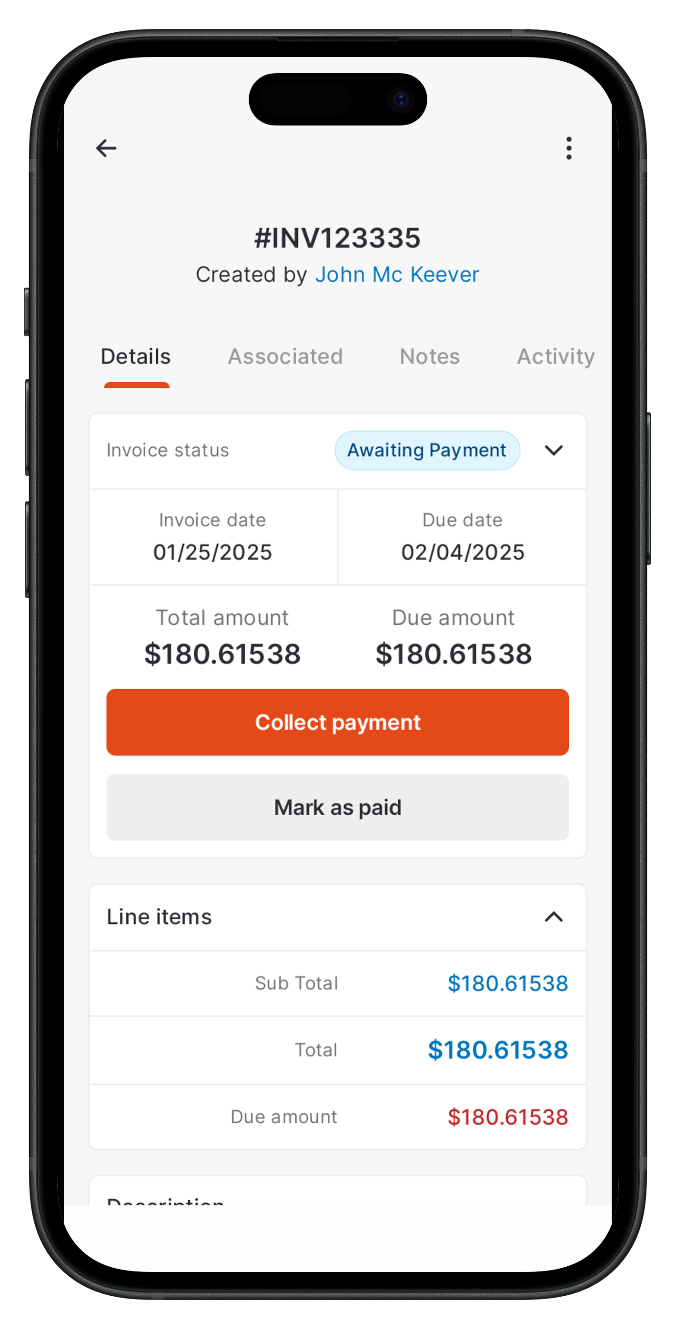
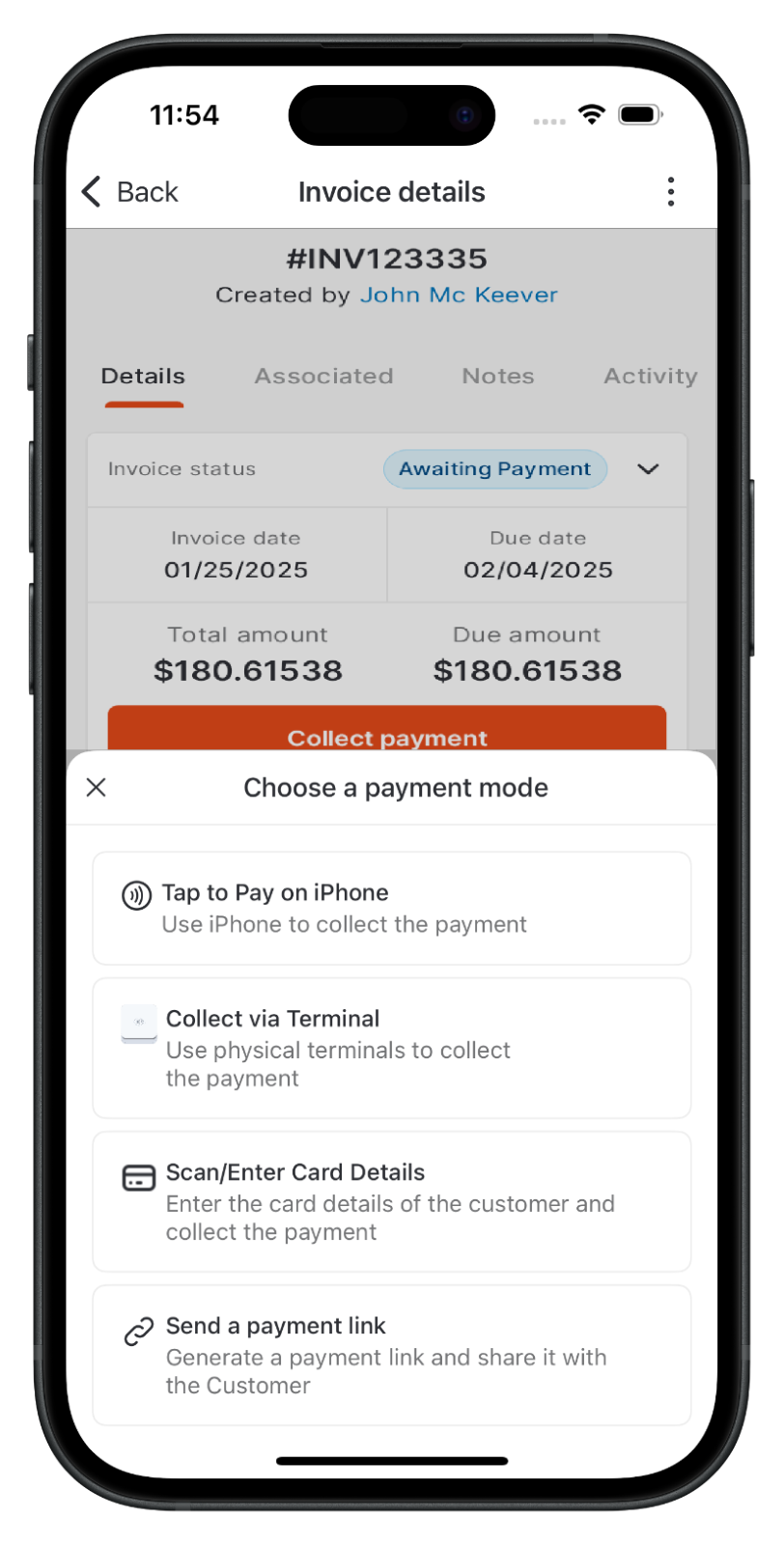
2. Tap Collect payment/Collect Deposit
A screen shot of a phone

Description automatically generated 
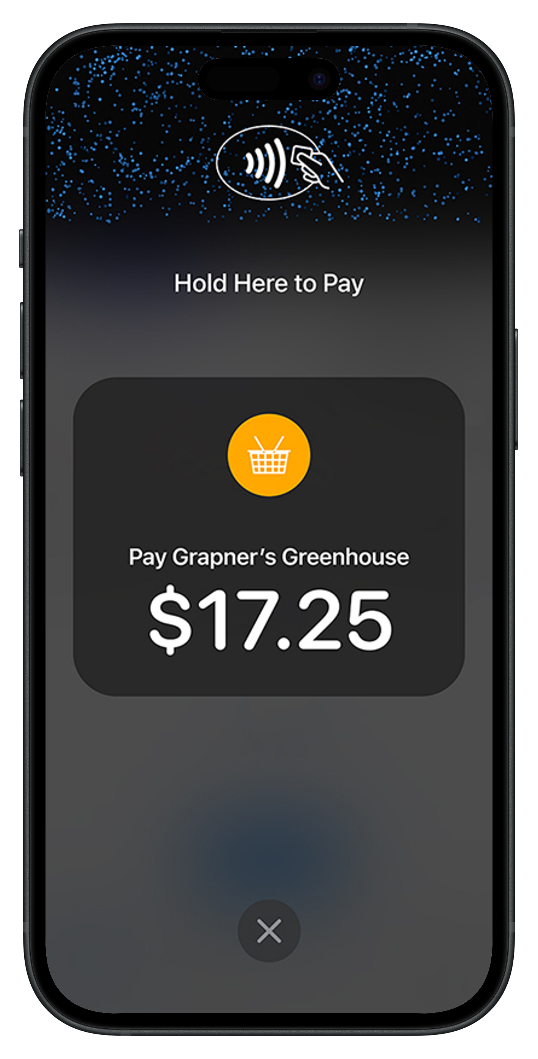
3. Select Tap to Pay on iPhone and ask the customer to hold their contactless card, NFC device, or digital wallet (Apple Pay, Google Pay, etc.) over the contactless symbol at the top of your iPhone. 
A screenshot of a cell phone

Description automatically generated       A screen shot of a phone

Description automatically generated
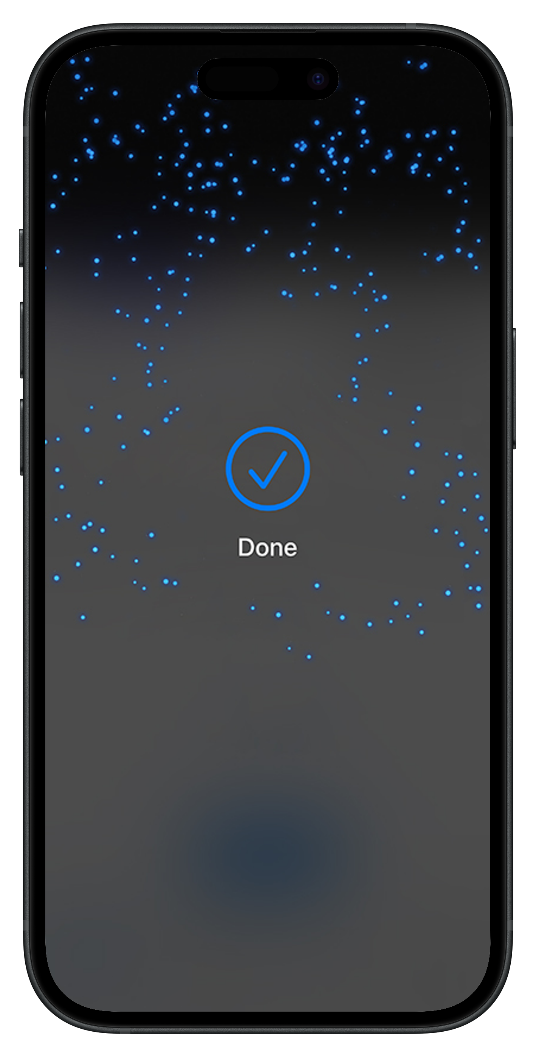
4. When you see the "Done" screen, the transaction is complete! 
      A screen shot of a phone

Description automatically generated 
    • Related Articles

    • How to access the Calendar/Schedule board in the Zuper web app?

      Zuper's powerful calendar module provides a unified view of your entire schedule, including one-time and recurring jobs, non-job events, technician time-offs, and holidays. With its intuitive interface, you can easily navigate through different time ...
    • How to log in to your Zuper account in the Zuper mobile app?

      The Zuper mobile app is an essential tool for field executives and managers, providing top-notch support for managing all your field services. To log in to your Zuper account and make the most of your Zuper experience, follow these instructions. ...
    • What are the minimum requirements for Zuper Android and iOS mobile app?

      To help you get started with the Zuper Mobile App, ensure your device meets the minimum system requirements for a smooth and seamless experience. Whether you are using an Android or iOS device, following these guidelines will allow you to enjoy all ...
    • How to switch to training mode in Zuper Pro Mobile App (Android) ?

      During the initial setup by Zuper, all the configuration and workflows of a company are configured in the staging or test environment and are given to the Organization for validation. Once these are tested and confirmed by the Organization, the same ...
    • How to switch to training mode in Zuper pro mobile app?

      During the initial setup by Zuper, all the configuration and workflows of a company are configured in the staging or test environment and are given to the Organization for validation. Once these are tested and confirmed by the Organization, the same ...