How to configure automatic clock-in and clock-out in the Zuper Web App
With Zuper's Automatic Clock-In and Clock-Out feature, tracking time has never been more seamless. This functionality ensures that users are automatically clocked in or out when they update job statuses, eliminating the hassle of manual time tracking. By including a helpful reminder to start a timer, this feature ensures that no work time goes unrecorded, providing the accuracy and efficiency necessary to keep your schedule organized.
Here’s how it works and how to enable this functionality:
Enable Automatic Clock-In and Clock-Out
To get started, an admin must configure the settings:
1. Log in to Zuper using an admin account.
2. From the left-hand navigation menu, select the Settings module.
3. Go to
Organization Settings and open
Job Settings.
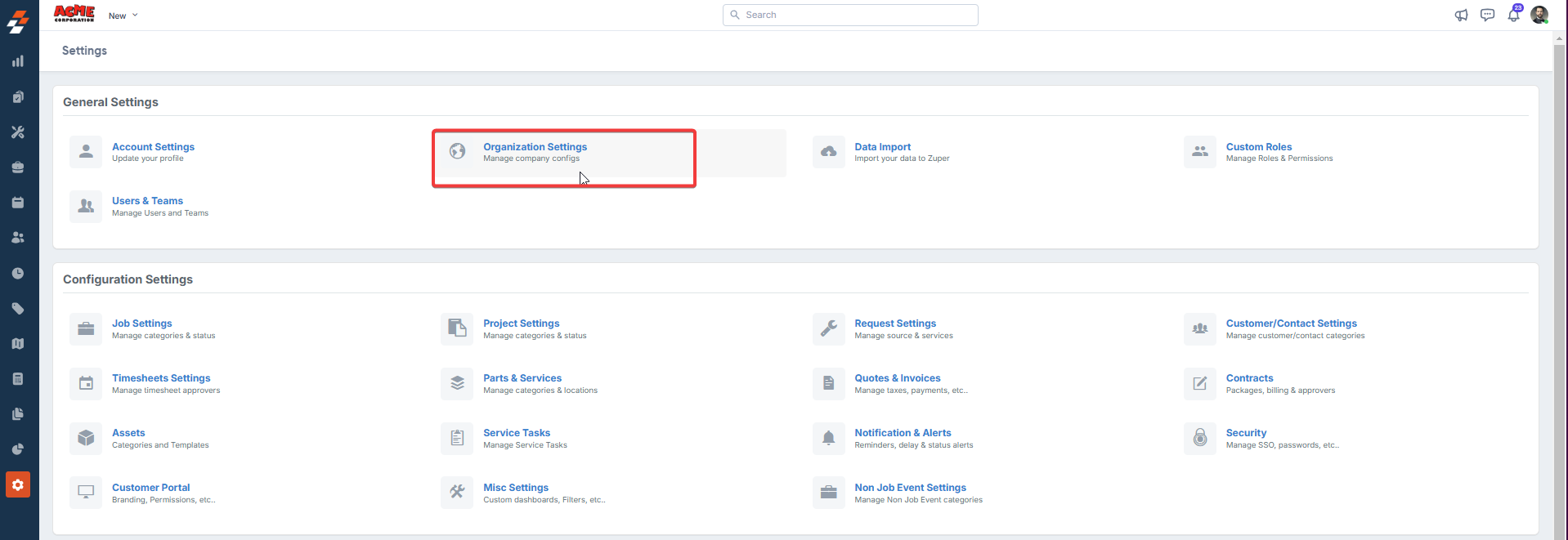
4. Ensure the Enable Time Log for Job is set to Yes.
5. Configure the statuses as follows:
- Choose a status type for automatic clock-in: Select the job status that triggers automatic clock-in (e.g., Started).
- Choose a status type for automatic clock-out: Select the job statuses that trigger automatic clock-out (e.g., Completed or Closed). All assigned employees will also be clocked out for the job.

Related Articles
How to configure timelog in Zuper
Overview of Timelog The Timelog feature in Zuper transforms how organizations manage and track the time that field technicians spend on job-related activities. Initially, Zuper facilitated clock-in and clock-out automatically; however, the enhanced ...
How to update the job status in the Zuper mobile app?
Updating job status is necessary to record the job flow and completion of the service. Job statuses serve as intermediate checkpoints within a job that can be updated by field technicians and other stakeholders, such as administrators, dispatchers, ...
How to log work and travel time on the Job in the Zuper mobile app
In Zuper, the timelog feature allows technicians to log both travel and labor time to track the time spent on each job accurately. This ensures that all time entries, whether spent traveling or working on-site, are captured properly. 1. Select the ...
How to manage timelogs in projects from the Zuper web app?
The timelogs section in the projects module allows you to view the timelogs of all users/technicians who have worked on the project, providing a detailed record of each user’s work hours spent on assigned jobs within the project for specific dates. ...
How to access and manage the time log summary in the Zuper web app
1. Select the "Jobs" module from the left navigation menu. 2. Choose the specific job you want to view by clicking on it on the Job listing page. 3. On the Job details page, locate and click on the Timelog Summary section. 4. This section will ...