How to add expenses to a Job in the Zuper web app
You can add expenses directly to a job, enhancing your ability to monitor costs effectively. With Zuper, you can easily upload receipt copies, specify if the expenses are reimbursable for your team, and accurately assign them to specific jobs.
- Navigate
to the Job Details page of the relevant job.
- Scroll
down to the Expenses section and click + Add Expense.
- You
can choose one of the following methods to upload your expense receipt:
- Upload
your receipt & Pre-fill:
Upload your receipt, and the Zuper AI tool will automatically extract and
fill in the details such as Name, Category, Date, and Amount. This option is
ideal for saving time and reducing manual errors.
- Manually add Expense Details:
Upload your receipt and enter the details yourself. This option gives you full
control over the entered information, especially when the receipt format is incompatible
with AI extraction.
- Once
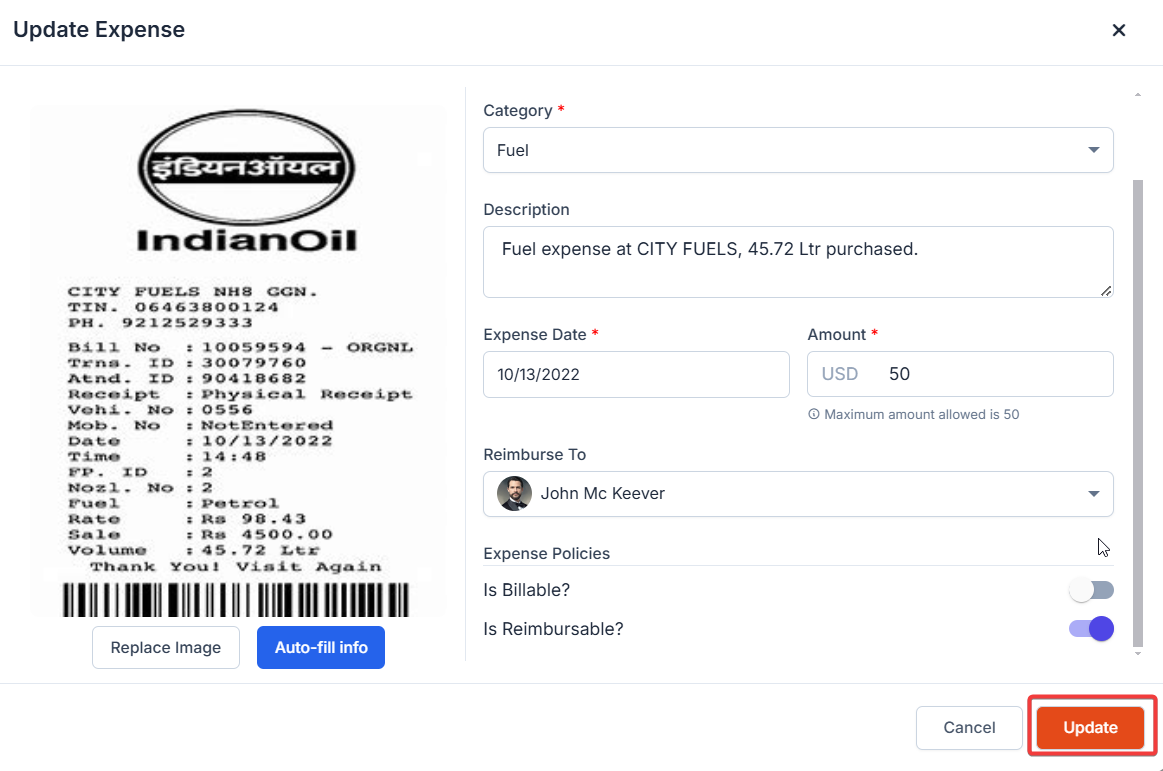
the receipt is uploaded, every expense item in Zuper contains the following
information.
- Name:
A name of the expense.
- Category:
Expense Category. Select the expense category from a dropdown menu during
manual entry, or if using the AI tool, the category will auto-fill based on the
uploaded receipt.
- Description:
Provide additional context for the expense.
- Expense
Date:
The date when the expense occurred.
- Amount:
The amount of the expense. Note: The system will not allow the expense amount
above capping limits to be entered.
- Reimburse
To:
Specify if the expense needs to be reimbursed to a user. Note that the availability of the Reimburse To field is based on the settings defined in the selected expense category. If the chosen category is marked as non-reimbursable, this field will not appear.
- Click Save to add the expense.
Functions on the Add Expense page
- Replace Image:
Use this option to update the uploaded receipt image.
- Auto-fill Info:
Use this option to extract details from the receipt to populate the
expense fields.
Editing an Expense
- On
the Job Details page, locate the relevant expense and click the Context
menu (three dots).
- Select Edit.
- Make
the necessary changes to any of the fields or receipts.

Note: If you’re logged in with Admin access or your role permits, you
can also update expense policies, such as Billable and Reimbursable,
directly on the Update Expense page. If you are experiencing issues
updating the expense policies, please reach out to us at support@zuper.co.
4. Click Update to save the changes.

Important: Changes made to the Billable or Reimbursable fields will only apply to the specific job and will not affect the settings in the master expense category.