How to set up regional and city taxes and pre-define the Tax based on the Address?
You need to pre-define the address to apply the taxes automatically. You can choose either the Billing address or the Service address. When creating the Quote or Invoice, the taxes will be added to the Quote based on the address added and based on the pre-defined settings.
Now we can select which
address has to be considered for Tax, either the billing or service address.
Pre-define
the Tax based on the Address

Navigation: Settings --> Organization Settings -->Misc. Settings --> Tax Settings
1. Select the “Settings” icon from the left navigation menu. Under the “Organization Settings,” click the “Misc. Settings” section.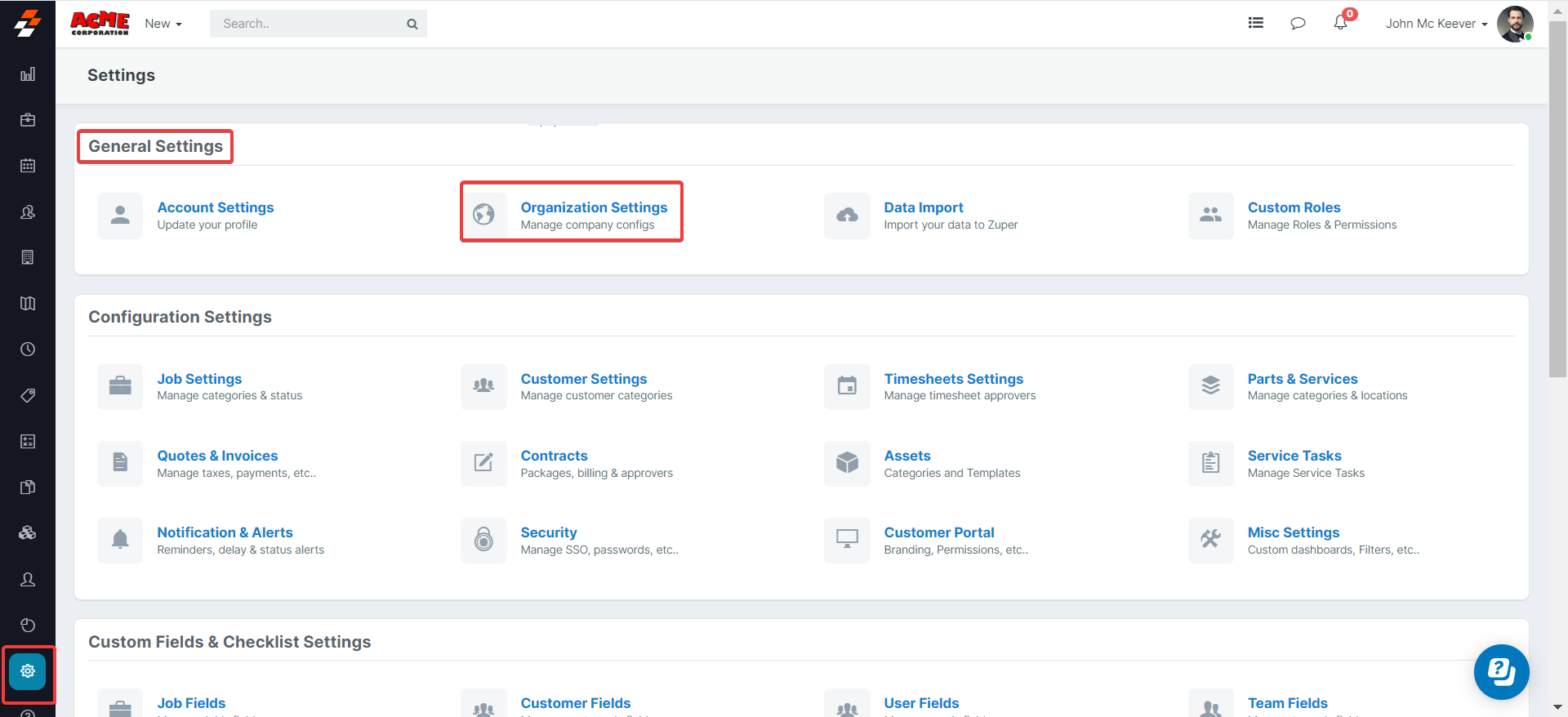
2. Under the “Misc. Settings,” Select the “Address
Type” from the drop-down box and click the “Save Settings” button.
Pre-Define the Tax Ranges
Settings --> Configuration Settings -->Quotes and Invoices --> Tax Settings --> +New Tax1. Select the “Settings” icon from the left navigation menu.
Under the “Configuration
Settings,” click the “Quotations & Invoices” section.
2. Under the “Tax Settings,” Click the “+ New Tax.”
3. Fill in the necessary details: “Tax Name,” “Tax Rate %,” “Associate Tax to Tax Group,” and tap on the “Save Tax.”
Create a New Quote – Link the
Tax Automatically
1. Select the “Accounting” module from the left navigation menu and choose the “Quotations” module.
Click the “+New” button and choose the “Quote.”
2. Select the “Customer” or “Organization” details to view the billing and service
address.
3. Based on the address selected, the regional Tax is applied
based on the region.
Capturing the taxes in the pre-settings helps for the hassle-free tax update on the quotation module. With this configuration, business gets the ability to decide how the tax needs to be applied if based on service or billing address.